TiviMate on Formuler
Follow this guide to connect your NetGen TV service using TiviMate on Formuler.
Look for “Your NetGen TV login details” or “Your NetGen TV trial is ready.” It contains your username, password, expiry and number of simultaneous streams. Check spam or junk if it has not arrived. Your service login is separate from your Shopify customer account.
Install TiviMate on Formuler
On your Formuler device, open the Google Play Store, search for TiviMate, and select Install → Open.
If the app is unavailable for your model, return to your device’s app choices to select another supported player.
Add a playlist
Open TiviMate and choose Add playlist.
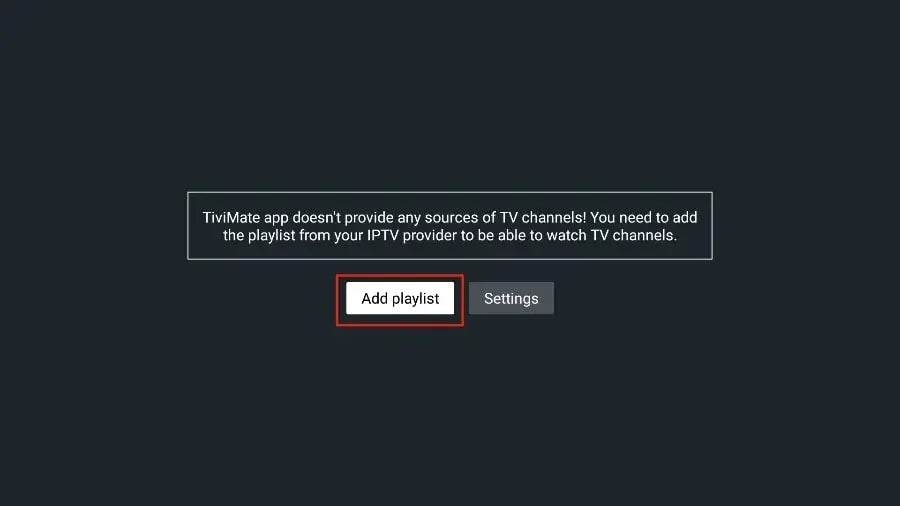
Select Add playlist on the welcome screen. Choose Xtream Codes
Select Xtream Codes login.
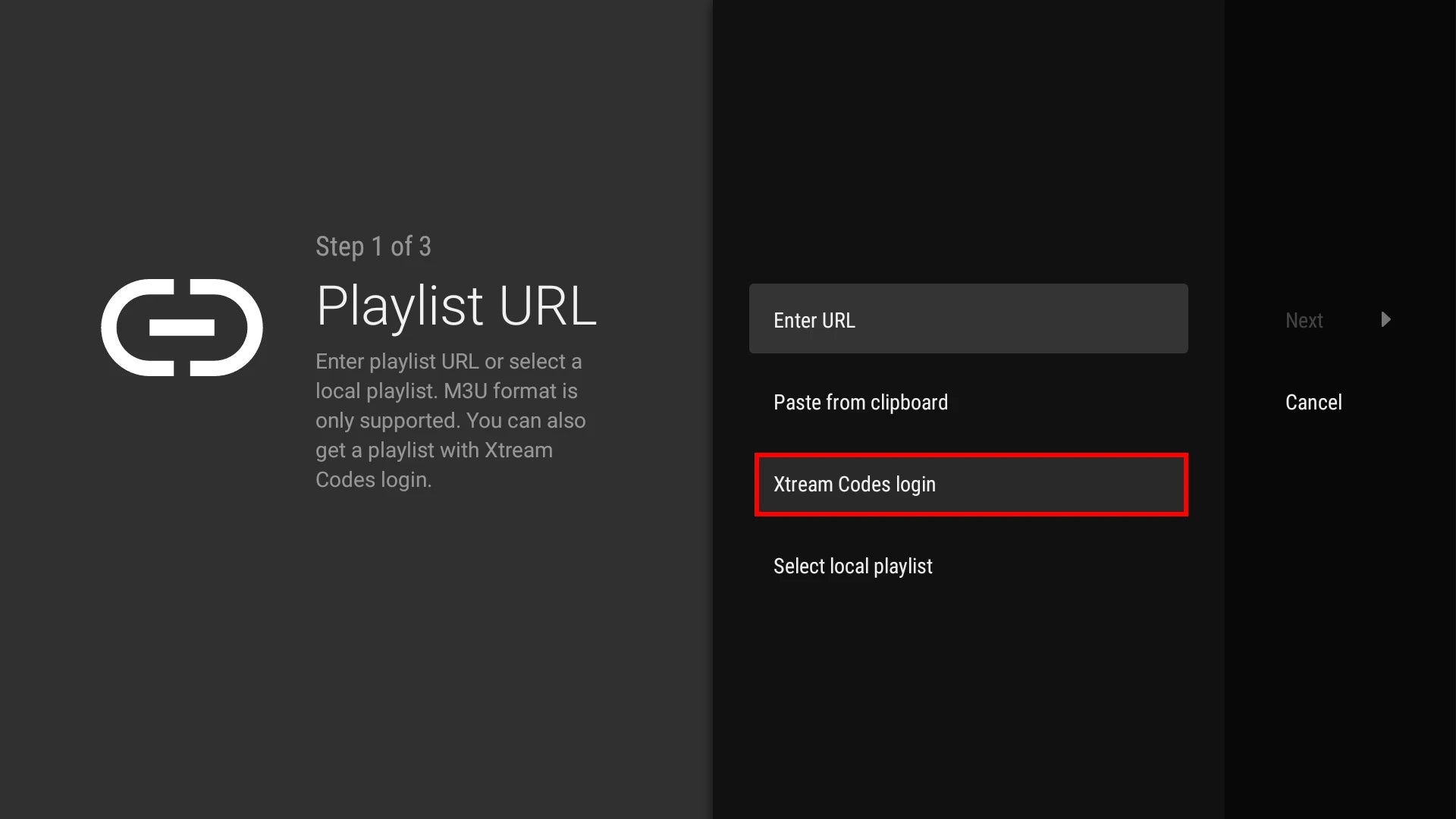
Choose Xtream Codes login, rather than a playlist URL. Enter your service details
Enter the server address, username and password from your NetGen TV login email. Leave Include VOD selected if you want movies and series. Select Next.
Enter these details from your email
- Profile / playlist name
- NetGen TV
- Username
- Your emailed service username
- Password
- Your emailed service password
- Server / host / portal URL
- The first server address in your login email, entered exactly as shown
Choose Xtream Codes API when your player offers a login method. Do not paste a server address into an M3U field. If your app only accepts M3U, reply to your login email for help.
Finish and load the guide
Wait for playlist processing to finish, keep the playlist name you want to use, then select Done. Allow the program guide to update and select a channel.
Some features require TiviMate Premium. Follow the player’s own Unlock Premium instructions if needed. A TiviMate license is separate from your NetGen TV subscription.
