NetGen TV on BuzzTV
Follow this guide to connect your NetGen TV service using NetGen TV on BuzzTV.
Look for “Your NetGen TV login details” or “Your NetGen TV trial is ready.” It contains your username, password, expiry and number of simultaneous streams. Check spam or junk if it has not arrived. Your service login is separate from your Shopify customer account.
Follow these steps with your BuzzTV remote. Pictures show a fresh NetGen TV Android installation; installer appearance may vary by model.
Install Downloader on BuzzTV
On your BuzzTV device, open the Google Play Store. Search for Downloader by AFTVnews, install it, then open it.
Allow Downloader to install NetGen TV
When your BuzzTV device prompts you, allow Downloader to install unknown apps. You may find this under Settings → Apps → Special app access → Install unknown apps. Menu labels vary by model.
Download NetGen TV
In Downloader’s URL or short-code field, enter:
Downloader code4942135Select Go or press Enter. Wait for the NetGen TV installer to appear. Select the app download, not an advertisement.

Enter 4942135 in Downloader. This screenshot shows the Android version of Downloader. Install and open
Confirm the installer names the app NetGen TV, then select Install. When installation finishes, select Open.
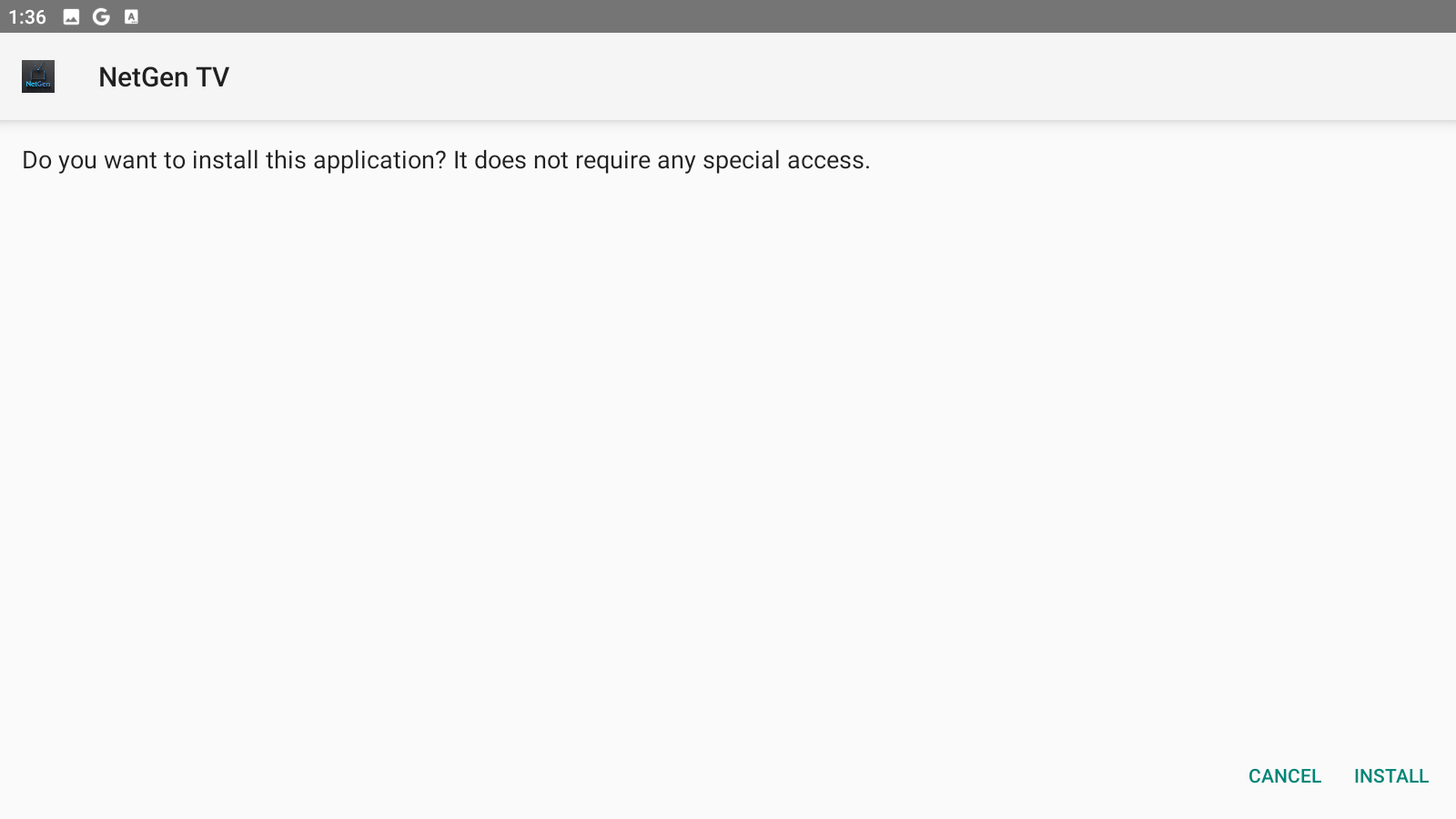
Choose Install to add NetGen TV to your device. 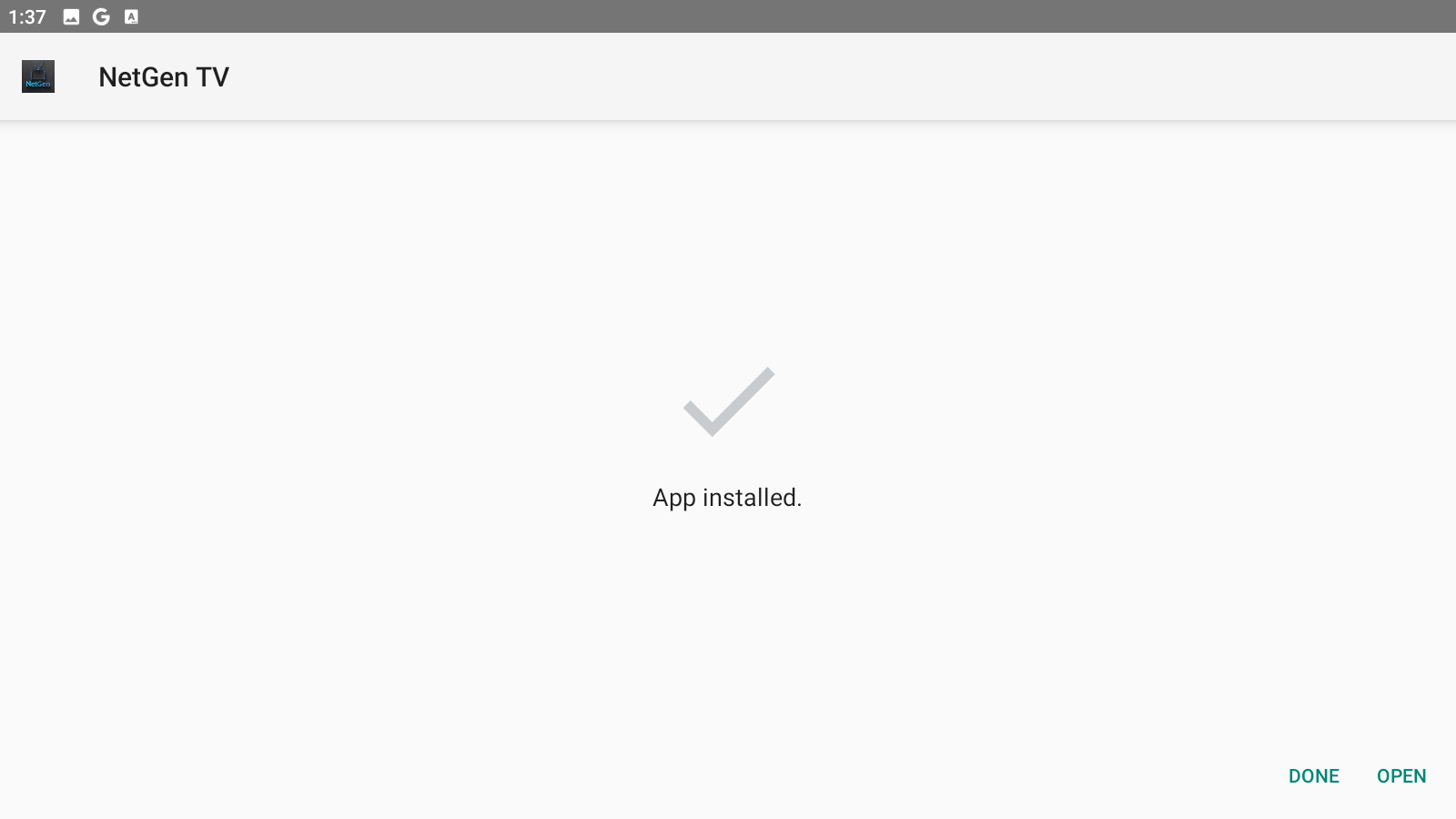
Choose Open when installation completes. You can remove the downloaded installer file afterward; this does not uninstall the app.
Choose Primary and sign in
Open Add Playlist if it appears. On the Service screen, choose Primary. NetGen TV already has the servers configured, so you do not need to type a server URL.
Enter your emailed username and password. Leave Include TV channels and Include VOD selected if you want both, then select Next.
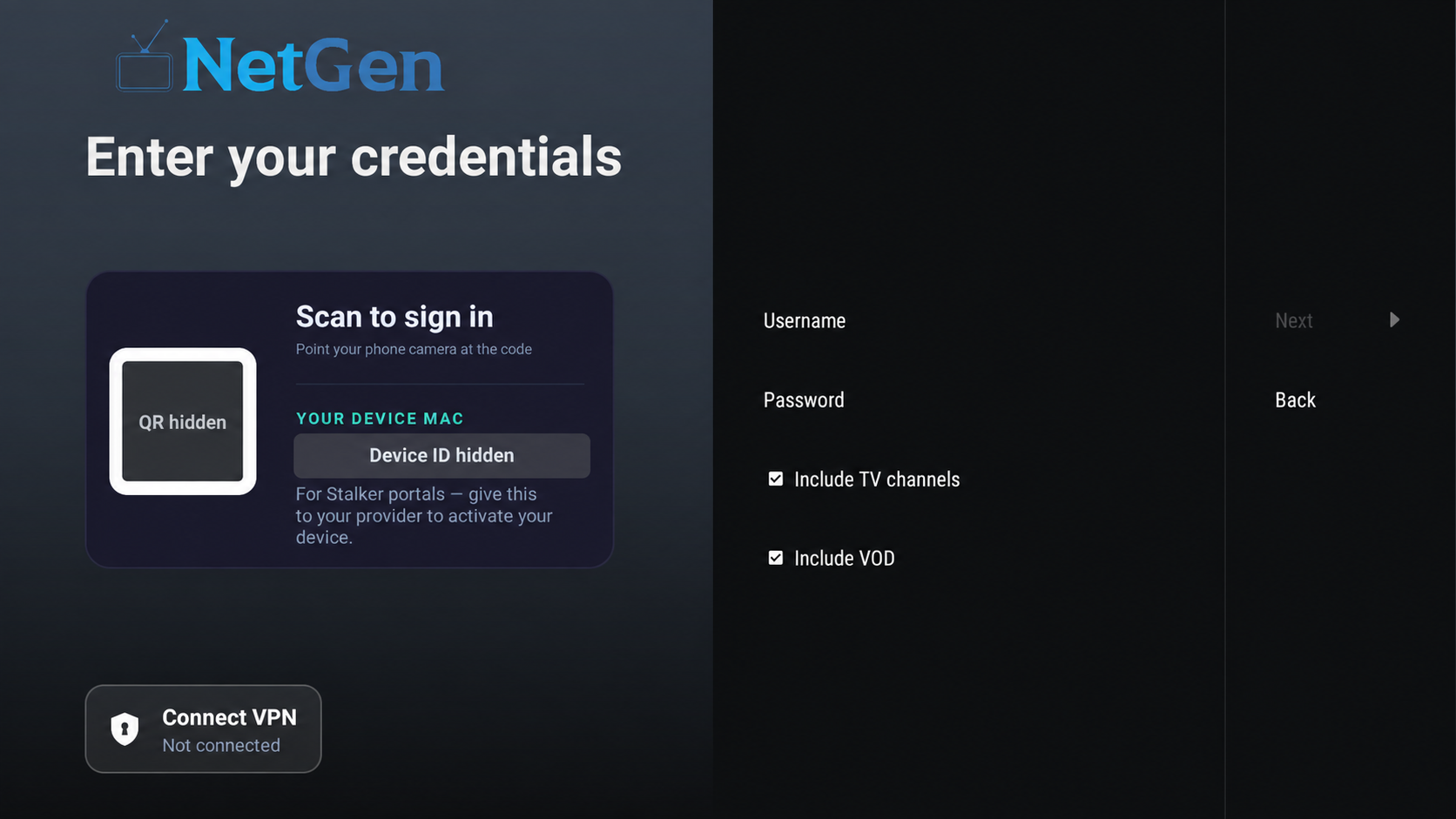
NetGen TV sign-in. QR code and device ID are concealed for privacy. You can also scan the QR code displayed on your own TV to enter your details from your phone. The image above is for illustration and cannot be scanned.
Let the playlist finish loading
Keep the app open while it processes your subscription. When “Playlist is processed” appears, keep the playlist name as it is and select Done. Allow the TV guide to update. Open a channel to check playback.
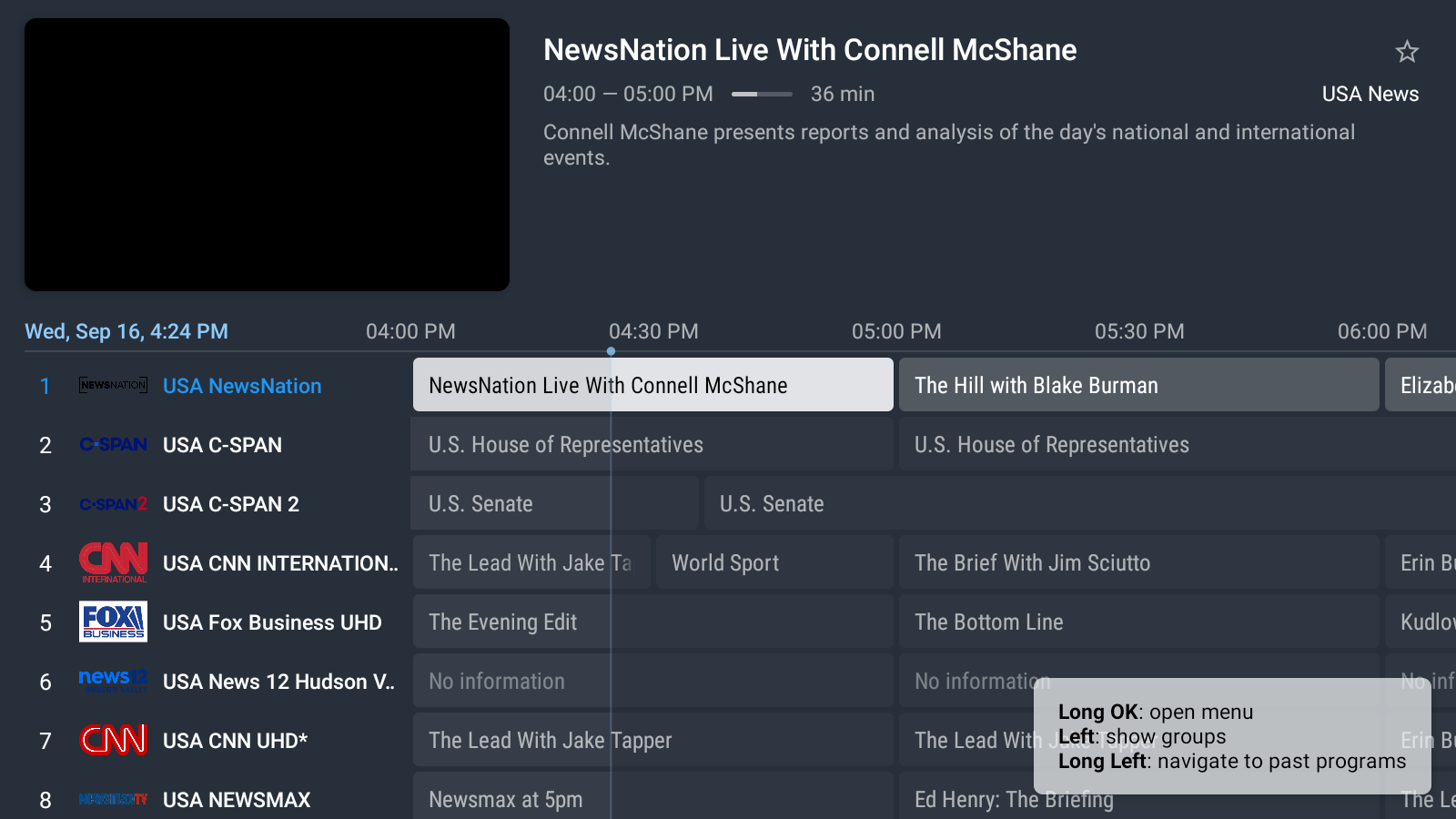
The channel guide after the playlist has loaded. Channels and programs vary. If sign-in fails, check spelling, capital letters, accidental spaces and your subscription expiry before trying again. Use a Backup service only when NetGen support advises it.

