IPTV Smarters on Apple devices
Follow this guide to connect your NetGen TV service using IPTV Smarters on Apple devices.
Look for “Your NetGen TV login details” or “Your NetGen TV trial is ready.” It contains your username, password, expiry and number of simultaneous streams. Check spam or junk if it has not arrived. Your service login is separate from your Shopify customer account.
Install IPTV Smarters on Apple devices
On iPhone or iPad, open the App Store, search for Smarters Player Lite and select Get. On Apple TV, open the App Store and search for the compatible IPTV Smarters Pro version. On Mac, choose the Smarters version offered for your Mac in the App Store. Open the installed app.
Availability varies by device and region. The screenshots below illustrate the Smarters sign-in fields; their placement may differ on your Apple device.
Choose your login method
Open Smarters, choose Add User, then Login with Xtream Codes API.
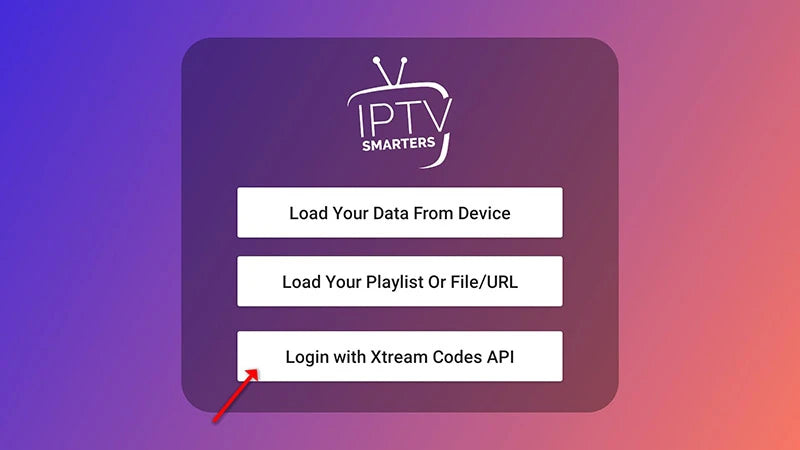
Choose Login with Xtream Codes API. Enter your NetGen details
For a new profile, enter a name you recognize. Copy your service username, password and server address from your login email, then select Add User.
Enter these details from your email
- Profile / playlist name
- NetGen TV
- Username
- Your emailed service username
- Password
- Your emailed service password
- Server / host / portal URL
- The first server address in your login email, entered exactly as shown
Choose Xtream Codes API when your player offers a login method. Do not paste a server address into an M3U field. If your app only accepts M3U, reply to your login email for help.

Use your own emailed credentials in these fields. Wait for content to load
Leave the app open while it downloads channels, movies and series.
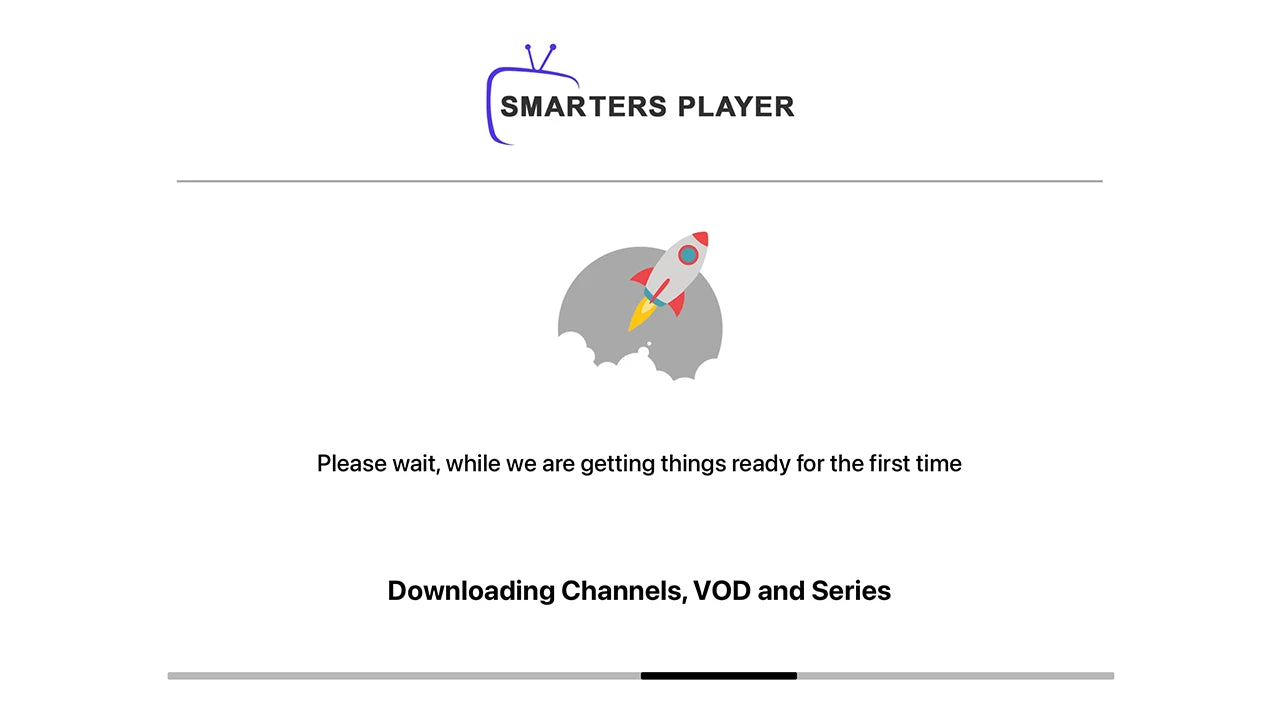
Allow the initial content download to finish. Open your profile
Select your profile from the user list, then open Live TV, Movies or Series. Allow the TV guide to update. If sign-in fails, check your login method, server address and credentials for extra spaces.

